Who Owns Your Ad Account, Pixel, and Audiences?
Whoever the ad platform bills owns the ad account. That is the whole answer. Every other signal people use — who logs in, whose logo is on the dashboard, who wrote the ads — is downstream of that one fact. If Google or Meta charges a card that is not yours, against a payment profile that is not in your business name, then you are renting an advertising account and you will find that out on the day you try to leave.
Most comparisons of ad software argue about features, pricing tiers and rule builders. Ownership rarely comes up. It is the item that costs the most when it goes wrong, and the cost lands at the exact moment you have the least leverage.
Three assets, three separate owners
People say “my ad account” and mean one thing. It is actually three, and they can have different owners at the same time:
- The ad account. The billable entity Google or Meta invoices. It holds campaign history, spend history and the bid-strategy learning attached to your campaigns.
- The pixel or dataset. The tracking asset on your website. On Meta a pixel or dataset lives inside a specific Business Manager. On Google, conversion actions live inside a specific Ads account or a manager account above it.
- The audiences. Custom audiences, customer lists, lookalikes and remarketing lists. These are built from the pixel and stored under whoever owns the pixel’s business, not whoever paid for the traffic that filled them.
You can own the pixel and rent the account. You can own the account and have your audiences sitting inside someone else’s Business Manager. Both combinations are possible, and neither is obvious from the dashboard you log into. If you want the underlying vocabulary first, our glossary entries on Meta Business Manager and the Google manager account (MCC) cover the container objects these assets sit inside.
The two models
Connected account. You create the ad account. Your business name, your payment method. You grant a tool or an agency access through OAuth or a partner link. You can revoke that access from inside Google Ads or Meta Business Settings in a few clicks, with no cooperation from the other side.
Pooled or provider-owned. The provider already has the ad accounts. Your campaigns run inside their structure, billed to their payment method, and you pay the provider instead of the platform. You get a dashboard. You do not get an account. When you leave, the account stays. That arrangement is the subject of whether you can run ads without a Google Ads account and managed ad accounts explained.
| Question | Connected account (you own it) | Pooled / provider-owned (you rent it) |
|---|---|---|
| Who does Google or Meta bill? | You, directly | The provider |
| Whose legal name is on the account? | Your business | Theirs |
| Can you revoke access unilaterally? | Yes, from platform settings | No. Access is theirs to give |
| Campaign history on exit | Stays with you | Stays with them |
| Bid-strategy and conversion learning | Preserved | Lost. New account, new learning |
| Pixel and dataset | Yours, if you created it | Often theirs, shared to you |
| Custom audiences and lookalikes | Yours | Usually non-transferable |
| Dispute path on ad spend | Platform, then your card issuer | The provider, and only the provider |
| If another tenant gets flagged | No effect on you | Shared-structure risk you cannot inspect |
| Switching cost | Revoke access, keep everything | Start over from zero |
What you actually lose on exit
“Start over” sounds abstract. Here is the concrete list, in the order it hurts.
- Bid-strategy learning. Google Ads Help documents a learning period for automated bid strategies (see “About the bid strategy learning period”), and it is attached to the campaign inside its account. Rebuild the campaign somewhere else and the strategy starts from nothing. You pay for that education twice.
- Conversion history. Conversion actions and their recorded volume live in the account. Google’s Smart Bidding documentation describes the system as setting bids from conversion data; a brand-new account gives it none to work from.
- Custom audiences and lookalikes. On Meta, audiences belong to the business that owns the source dataset. Meta’s Business Help Center documents dataset and pixel sharing as granting a partner access, not transferring the asset. Access that was granted can be withdrawn.
- Pixel data depth. Even when a provider agrees to hand a pixel over, the historical event data does not follow you to a brand-new pixel. Re-tagging your site is cheap. Re-accumulating six months of events is not.
- Ad and policy history. Approved creative, review history and account age all reset to zero on a new account, and you carry none of your prior standing with you. Starting cold is also where beginners hit the problems in why ads get disapproved on Google and Meta.
- The account itself. This is the one people forget. If your ads ran on their account, there is no export that makes it yours.
Who pays the platform decides your rights
If your card is on file with Google or Meta, you have a direct commercial relationship with the platform: invoices in your name, spend you can audit line by line, and a dispute path that runs to the platform and then to your card issuer.
If the provider pays the platform and bills you, you have a relationship with the provider and nothing else. You cannot audit the raw spend. You cannot verify markup unless they choose to show you. If the numbers look wrong, your only counterparty is the company that produced the numbers. That is also how hidden markup gets introduced: the gap between what the platform charged and what you were invoiced is invisible by construction. On self-serve plans AdFlint charges 0% markup on ad spend for the simple reason that we never touch the spend — it goes from your payment method to the platform. The mechanics are on how AdFlint works. If you want to sanity-check the numbers before anyone quotes you, the cost of Google Ads for a small business is a useful baseline.
Related failure mode: suspension. If an account you do not own is suspended, you cannot file the appeal, because appeals are filed from inside the account by its owner. Our guides on a suspended Google Ads account and a restricted Meta ad account both assume you have standing to appeal. Under a pooled model you do not.
What tools actually ask you to hand over
The warning in this article is narrow, so here is the fair version. We created trial accounts on two well-known ad tools on 30–31 July 2026 and worked through their onboarding. Neither offered to run ads on an account of its own. Both asked us to connect an account we already owned — which is the model this article is arguing for.
Stated limit: we never connected a live ad account to either product. So we can describe what their onboarding demands and what their integration lists show, and nothing about their optimization quality, rule execution or reporting once real spend is attached.
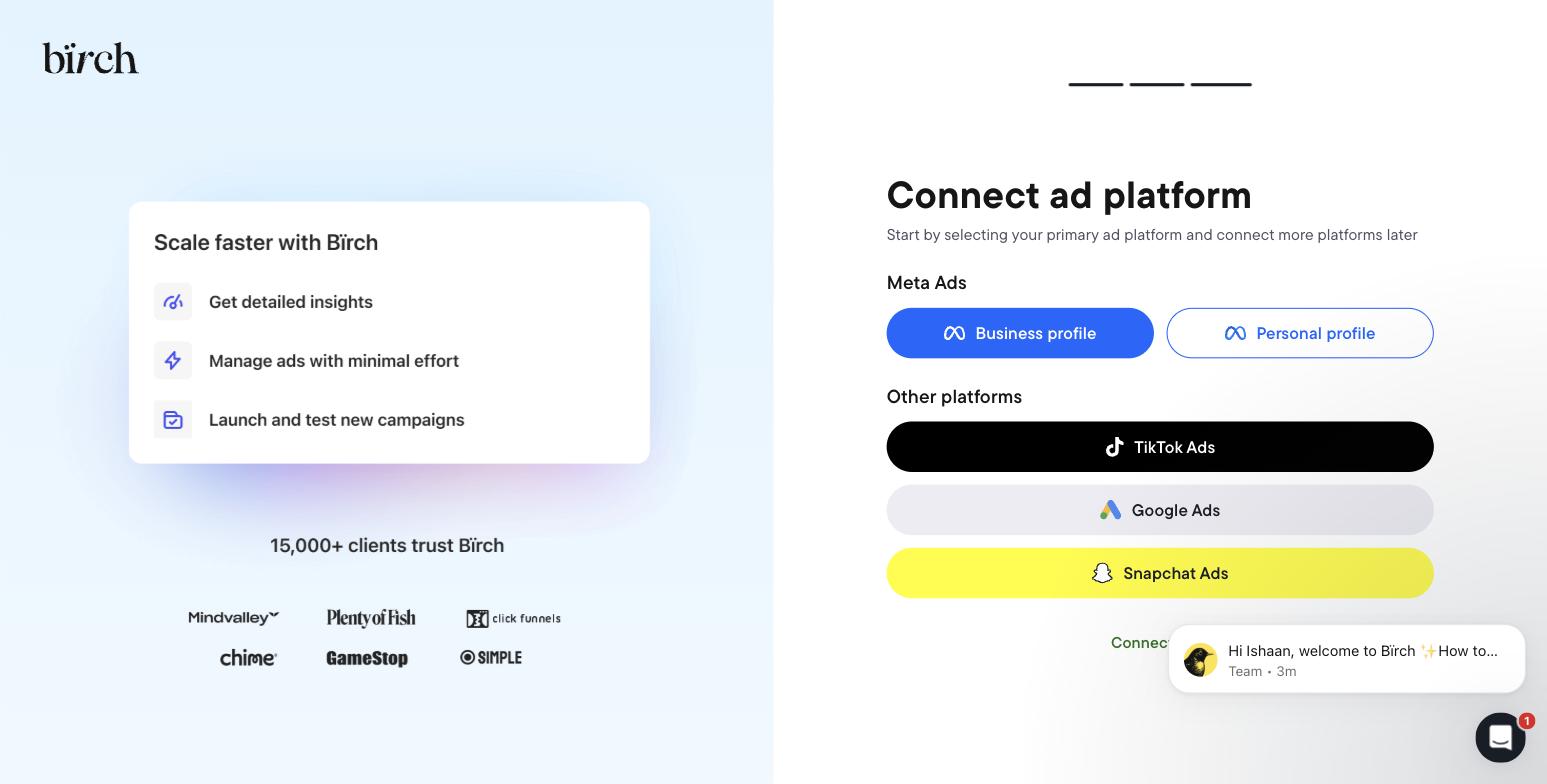
Birch (formerly Revealbot) gates onboarding on connecting a live ad account you already own. No sandbox, no demo data — in our trial the rule builder stayed inaccessible until an account was connected. Captured 31 July 2026.
That gate is annoying if you want to evaluate the product first. It is also the correct ownership posture: the account is yours, the connection is a grant, and you can pull it. We wrote up the rest of that trial, including its spend-tiered pricing and which features are locked out of the entry plan, in our Revealbot and Birch alternatives review.
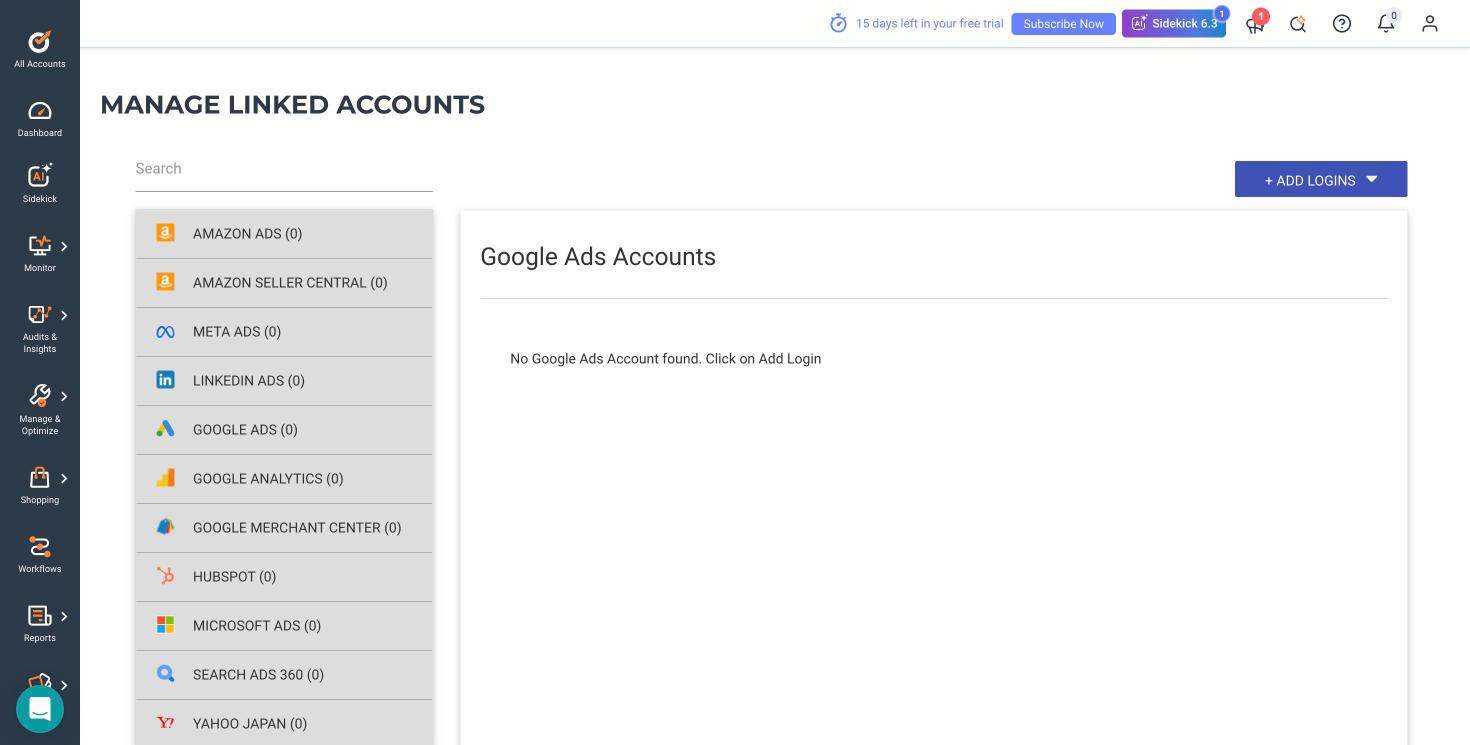
Optmyzr’s linked-accounts screen: 11 platforms, every one of them a connection to an account you own. We connected none of them. Captured 31 July 2026.
One detail from Optmyzr’s onboarding is a model of how this should be handled. Its optional Google manager-account link dialog makes you type the word CONNECT, warns you that Google will automatically email everyone with access to the account, and states plainly that it is not recommended for agencies without explicit client approval. That is a vendor telling you the access grant is visible and consequential. Compare it to any provider that would rather you skipped the account step entirely.
Twelve questions to ask before you grant access
| Ask | Answer you want | Red flag |
|---|---|---|
| Whose name is on the ad account? | Mine | “Ours, but you get full visibility” |
| Whose payment method does the platform charge? | Mine, directly | Theirs; you pay them |
| Can I see raw platform invoices? | Yes, in my own account | Only their dashboard numbers |
| What is the markup on ad spend? | Zero, or disclosed as a line item | “It is all included” |
| Who owns the pixel or dataset? | My Business Manager owns it | Theirs, shared to me |
| Who owns custom audiences built during our work? | Me | Non-transferable |
| How do I revoke access? | From platform settings, unilaterally | By emailing support |
| What happens on day one after cancellation? | Campaigns keep running, I keep the account | Campaigns pause or disappear |
| Is there a notice period or exit fee? | None | Anything above 30 days |
| Do other clients share my account or pixel? | No | Any version of yes |
| Who files the appeal if the account is suspended? | Me, as owner, with their help | Only them |
| Do I keep the conversion history? | Yes, it lives in my account | “We can export a report” |
Get the answers in writing before access is granted, not after. The leverage is entirely on your side beforehand and entirely on theirs afterwards.
The audit: what have you already signed up for
Run this today. Set aside half an hour. None of it requires anyone else’s cooperation.
- Step 1. Open Google Ads. Check the account ID and the business name at the top. If you do not recognise the business name, you are inside someone else’s account.
- Step 2. Go to Billing, then Settings. Read the payment profile name and the payment method. If it is not your entity and your card, you do not own the billing relationship.
- Step 3. Go to Admin, then Access and security. List every email and its access level. Anything at Admin level can remove you.
- Step 4. In the same area, check Managers. Note every manager account linked above yours and whether the link is one you approved.
- Step 5. Go to Goals, then Conversions. Check whether conversion actions are owned by your account or inherited from a manager account. Inherited actions can be withdrawn.
- Step 6. Check Audiences under Tools. Note which remarketing lists are yours and which are shared in from elsewhere.
- Step 7. Open Meta Business Settings. Confirm the Business Manager name is your business, and that your personal profile has admin rights on it, not just employee access.
- Step 8. Under Accounts, then Ad accounts, check whether each account is owned by your business or shared from another business. Shared means rented.
- Step 9. Under Data sources, find your pixel or dataset. Check the owning business. If a partner owns it, your event history is on their side of the fence.
- Step 10. Open Audiences in Ads Manager and check the origin of each custom audience and lookalike.
- Step 11. Under Partners, list every business with access and what assets each one holds. Remove partners you no longer work with.
- Step 12. Check payment settings for the Meta ad account. Same test as step 2: your entity, your card, or not.
- Step 13. Check your own website for tags you did not install. A tag firing a pixel you do not own means someone else is building audiences off your traffic.
- Step 14. Re-read your contract for the words assignment, transfer, notice period and ownership. If it is silent on ownership, that silence favours the provider.
- Step 15. Fix what you can now: create your own ad accounts and your own pixel in parallel, even if campaigns keep running elsewhere during the transition. Owning an empty account is better than owning nothing.
To be fair to pooled models
Pooled accounts are not automatically fraud. There are real reasons providers use them: some businesses cannot get approved on a platform on their own, some verticals need an entity with existing standing, and pooling genuinely lowers the setup burden for a customer who wants nothing to do with Business Manager. If you are running a two-week test and expect to keep nothing, renting is a defensible trade.
The trade stops being defensible the moment the account starts accumulating value. Once you have conversion history, a warm remarketing pool and a bid strategy that has finished learning, the asset is worth more than the software fee, and it is not yours. Decide which side of that line you are on before you sign, not eighteen months in. The buying decision itself is covered in ad agency versus AI ad manager, and the budget end of it in the small business overview.
Where AdFlint stands
Connected accounts only. You own the Google Ads and Meta accounts. You authorise us through OAuth, and you revoke us from inside the platform without asking us first. We do not pool customers into a provider-owned account, self-serve plans carry 0% markup on ad spend, we enforce hard budget caps, and monthly plans start with a 7-day free trial. Self-serve plans cover up to $30,000 a month of ad spend, with custom pricing above that. The full sequence is on how it works, the tiers are on pricing, and the access and data posture is on our security page.
An honest limit, because this page is about trust: we have not run sustained live ad spend of our own. So we publish no performance claims, no ROAS figures, no client results and no case studies. What we can show is the product working. The public first-ad demo on our homepage needs no account, and it produced a Google search ad and a Meta feed ad in about 22 seconds.
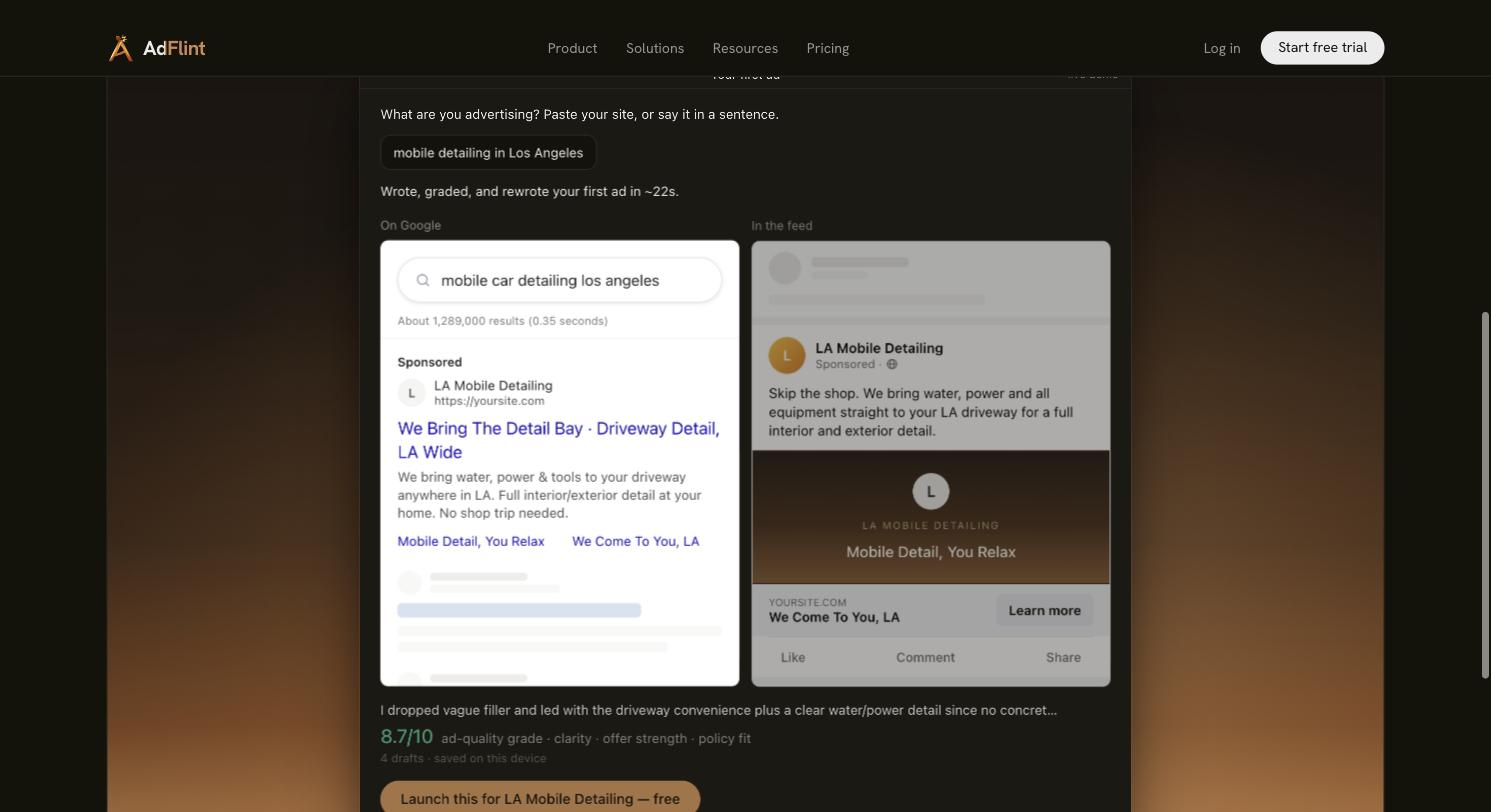
AdFlint’s live demo on adflint.com. Input: mobile detailing in Los Angeles. Four drafts, self-graded 8.7/10 on clarity, offer strength and policy fit. This is generated output, not campaign performance. Captured 31 July 2026.
If you are earlier in the decision, the platform pages on Google Ads and Meta ads cover what running each one actually involves. If you want to model the numbers before granting anyone access, the ad budget calculator is free and needs no signup. And when you are ready to compare the mechanics side by side, go back to how it works and check every claim on this page against it.
One sentence to keep: the tool you can leave in five minutes, with everything intact, is the tool you can trust for five years.
Related guides
How to Fire Your Ad Agency Without Losing Data
Audit and export before you give notice, never after. An 18-step exit runbook: confirm who the platform bills, take ownership, revoke access last.
What a PPC Retainer Actually Buys You Each Month
A PPC retainer buys hours. A line-item breakdown with estimated time per task, how to read Google and Meta change history, plus 5 questions to ask.
Facebook Ads Without a Page: What Meta Allows
Yes, but once: Meta limits the no-Page path to a business's first Instagram boost. What Meta's docs require, the myths to ignore, and every route compared.
Compare the options
Skip the learning curve
AdFlint writes, launches, and optimizes Google and Meta campaigns inside the ad account you own — you approve every ad, and hard budget caps protect your spend. 7-day free trial.
Free tools: ad copy generator, ROAS calculator, budget calculator · ads by industry